Up/Down Volume
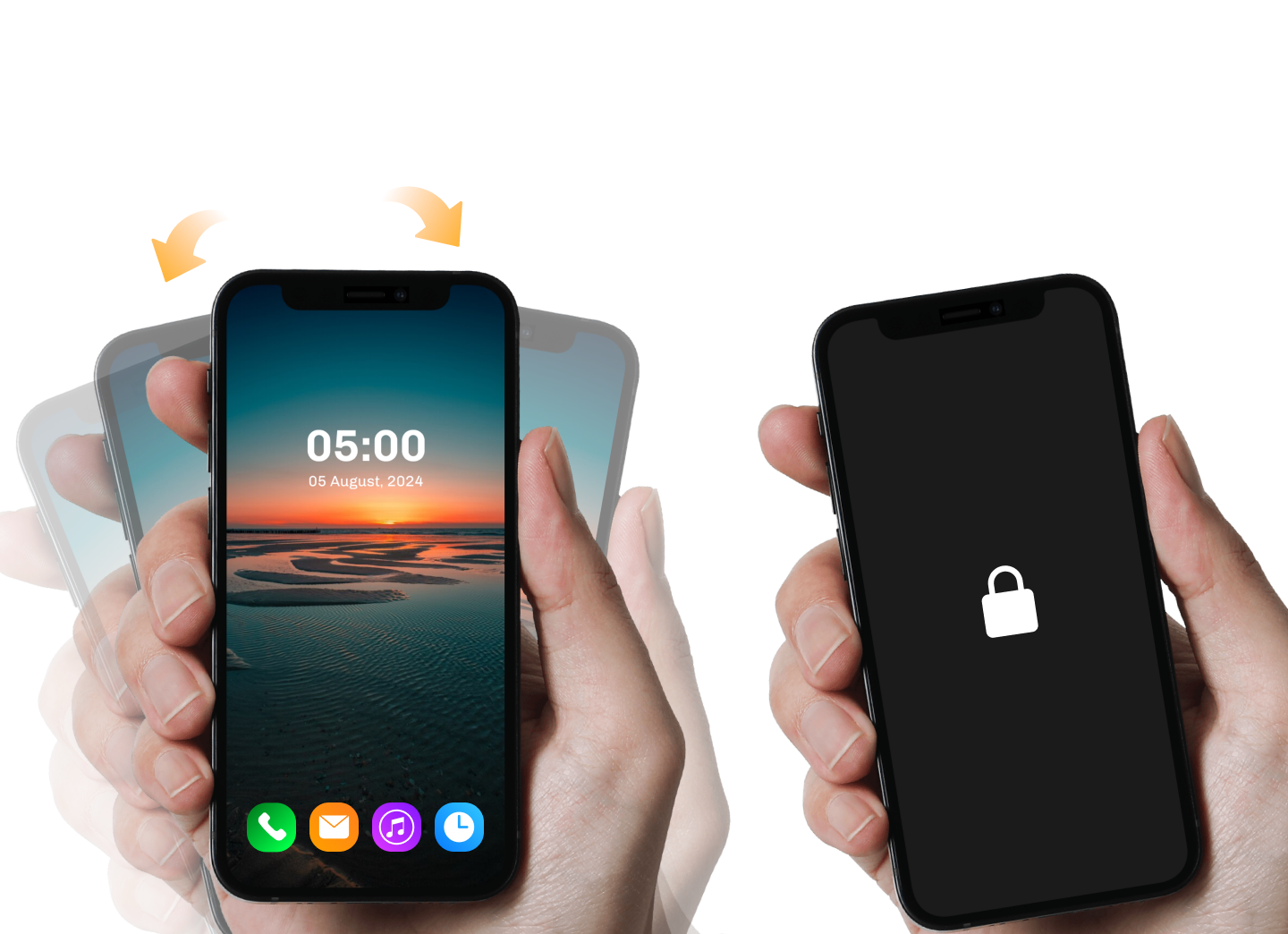
Shake to Lock

Shake To Up/Down Volume
Wave your hand on phonescreen to automatically turn on and lockphone screen.
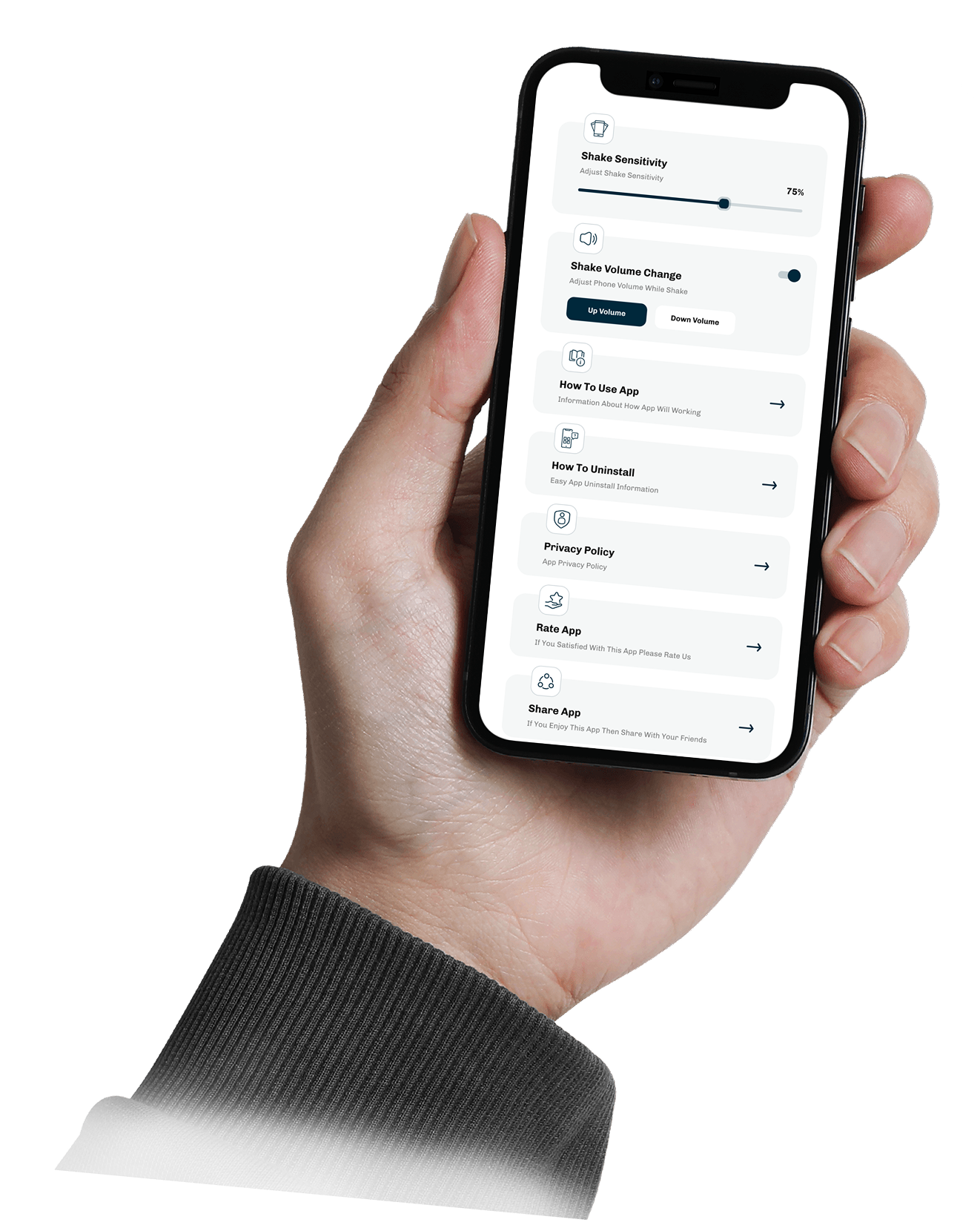
You can adjust shake sensitivity to control the speed of your phone's response. In the app, use the volume buttons to increase or decrease shake volume. This allows you to change the phone's volume while shaking it.
Volume Button Lock Setup
Step 1: Install a Volume Button Lock App
- "Volume Unlock"
- "Power Button to Volume Button"
- "Gravity Screen" (also supports volume-based wake)
- "Volume Power" by SystemPlay
Step 2: Grant Necessary Permissions
- Open the app.
- Grant Device Admin or Accessibility Services when prompted.
- Enable "Volume Button to Lock/Unlock" feature inside the app settings.
- Allow background activity if required for consistent behavior.
Step 3: Configure Button Behavior
- Single Press: Lock or wake the screen.
- Double Tap: Optional safety action to avoid accidental locking.
- Volume Up: Wake screen.
- Volume Down: Lock screen.
Step 4: Optional Customization
- Enable vibration feedback on press
- Set lock delay time
- Auto-disable during media playback
- Battery saving mode for sensor-based apps
Step 5: Test the Volume Button Lock
- Turn off your screen manually or wait for it to time out.
- Press the configured volume button.
- If working, it will lock or wake the screen based on your settings.
- If not, double-check permissions and background activity settings.
Key Benefits
Benefits of Volume Button Lock:
- Perfect for phones with damaged power buttons
- Fast and easy screen lock or wake
- Less strain on hardware
- Works even when screen is off
- Hands-on control without unlocking the screen fully
- Simple setup and highly customizable
Notes & Compatibility
- Works best on Android 8.0 and above
- Some OEMs restrict background services — check battery optimization settings
- May not work with all lock screen security types (e.g. face unlock)
- Test thoroughly with your device model and OS version
Asked Questions
Volume Button Lock allows you to use the physical Volume Up or Volume Down buttons on your phone to lock or wake the screen. It's a convenient alternative to using the power button, especially if it's worn out or unresponsive.
- Download an app like "Volume Unlock" or "Power Button to Volume Button" from the Play Store.
- Open the app and follow the setup instructions.
- Grant necessary permissions like Device Admin Access.
- Select your preferred volume button behavior (e.g., lock with Volume Down, wake with Volume Up).
Most apps allow you to tweak how the volume buttons behave:
- Choose which button locks or wakes the screen
- Enable vibration or sound feedback
- Set a double-tap or long-press action
- Disable while playing media to avoid interference
Very little. Volume Button Lock apps are typically lightweight and don’t consume much power. Just make sure to:
- Exclude the app from battery optimization
- Use power-efficient settings like disabling unnecessary sensors
As long as background permissions are properly set, battery impact is minimal.
If the volume button feature isn’t working as expected:
- Make sure you granted all required permissions
- Disable battery optimization for the app
- Reboot your device after setup
- Check if another app is overriding volume button behavior
If the issue persists, try an alternative app or reinstall the current one.
How Download The App?
Just download the app from the store. Simple, nice and user-friendly application.

© Shake To Lock Unlock Screen All rights reserved.