Accessibility Permission

This permission allows an app to bind to an Accessibility Service. Accessibility services are typically used to help users with disabilities interact with their devices. This can include things like screen readers, magnifiers, and other tools that assist users with visual, auditory, or motor impairments.

• Screen readers that read out on-screen text.
• Gesture-based controls for users with motor disabilities.
• Text-to-speech and braille support.
• Providing large text or voice feedback for the visually impaired.

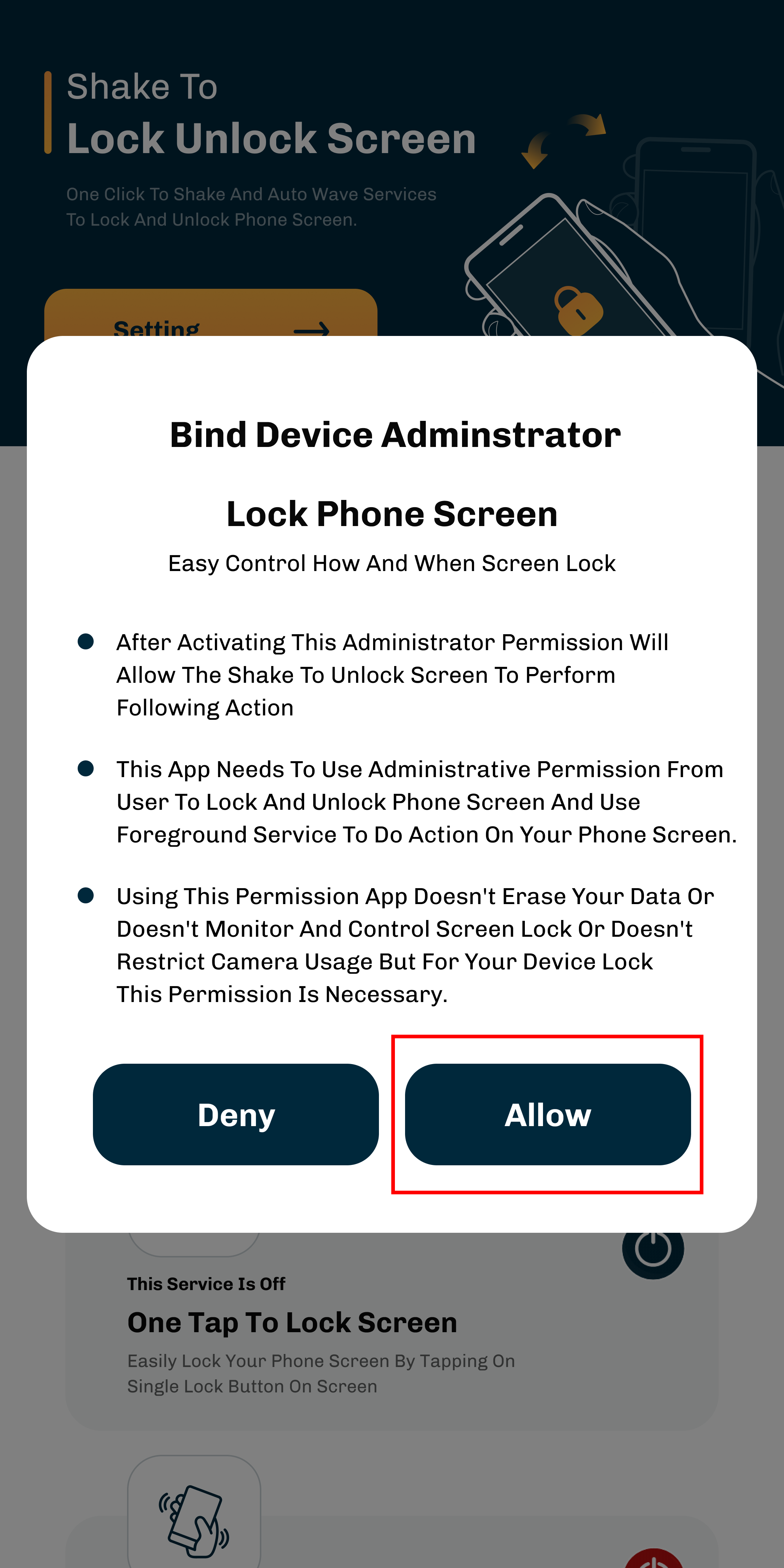
Bind Device Administrator Permission

This permission allows an app to bind to a Device Admin service. Device administration is a feature in Android that is primarily used for enterprise mobility management (EMM) and mobile device management (MDM) purposes. It lets apps perform tasks like enforcing password policies, remotely wiping a device, locking the device, or restricting certain actions.

• Remote wipe of a device (e.g., in case of a lost or stolen device).
• Setting password policies for devices.
• Locking the device screen or requiring a password.
• Disabling certain apps or functions on the device for security purposes.

Forground Service Special Use Permission

The Foreground Service Special Use Permission is an internal permission specific to Android that is designed for apps running foreground services with special use cases. In Android, a foreground service is a type of service that performs tasks that the user is actively aware of, such as music playback, GPS navigation, or ongoing file downloads. These services run in the foreground to ensure they aren’t

Location tracking
• Media playback
• Device control
• Health data management

Use this permission for your device lock.

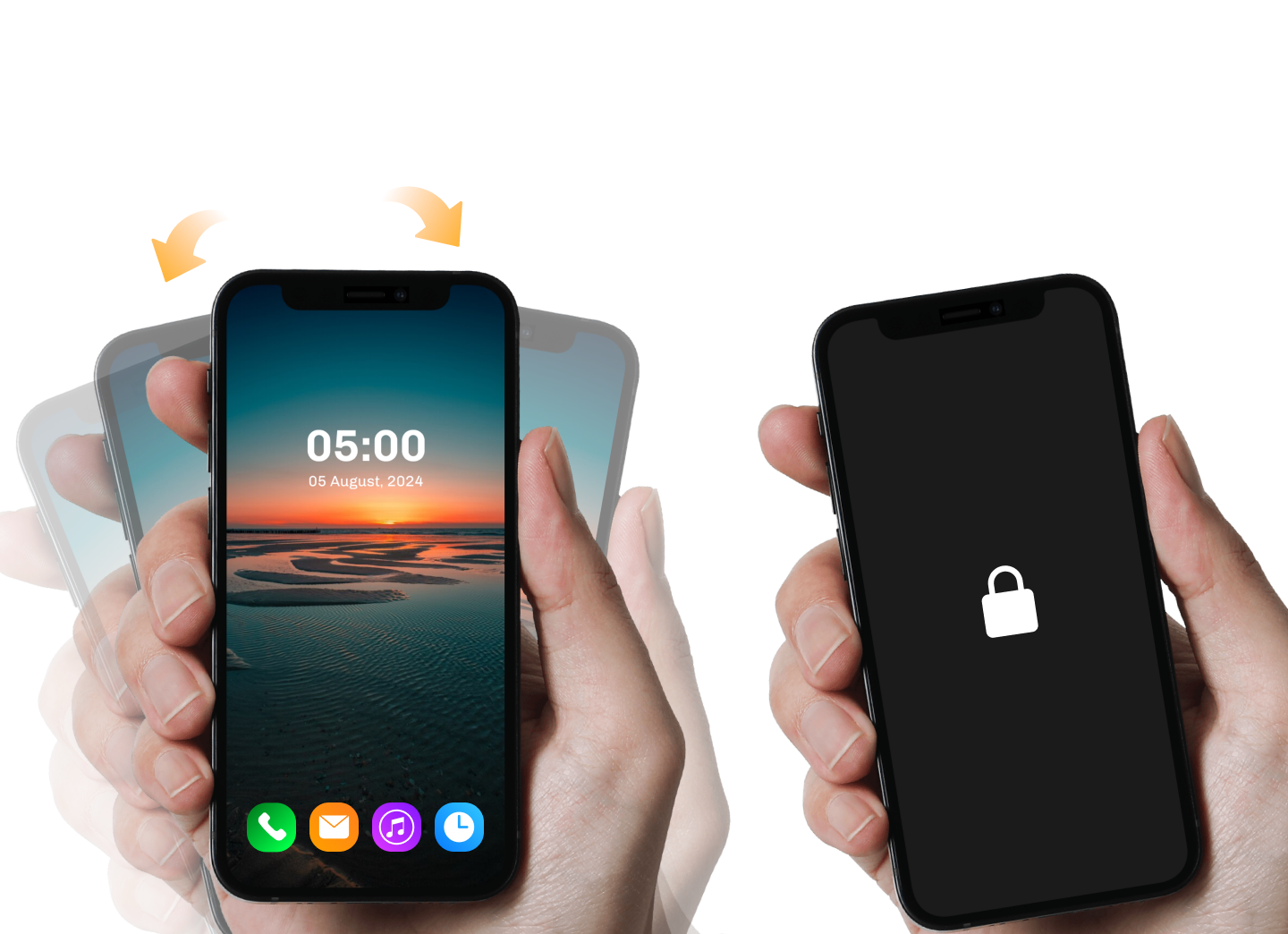
With this app, you can simply shake your phone to lock or unlock the screen. This feature is particularly useful if your power button is broken or if you want to lock or unlock your screen in the dark. Shake screen lock unlock is a simple but effective app that does exactly what it claims to do. It has only two features: shake to lock and Shake to unlock, making it a straightforward and efficient solution for screen locking.

• This permission will accept the shake to unlock screen
• Using this permission app doesn't erase your data.
• Doesn't monitor and control screen lock.
• Doesn't restrict camera usage but For your device lock this permission is necessary.

How to activate the app for lock and unlock app.

1. Install Shake to lock and unlock screen app.
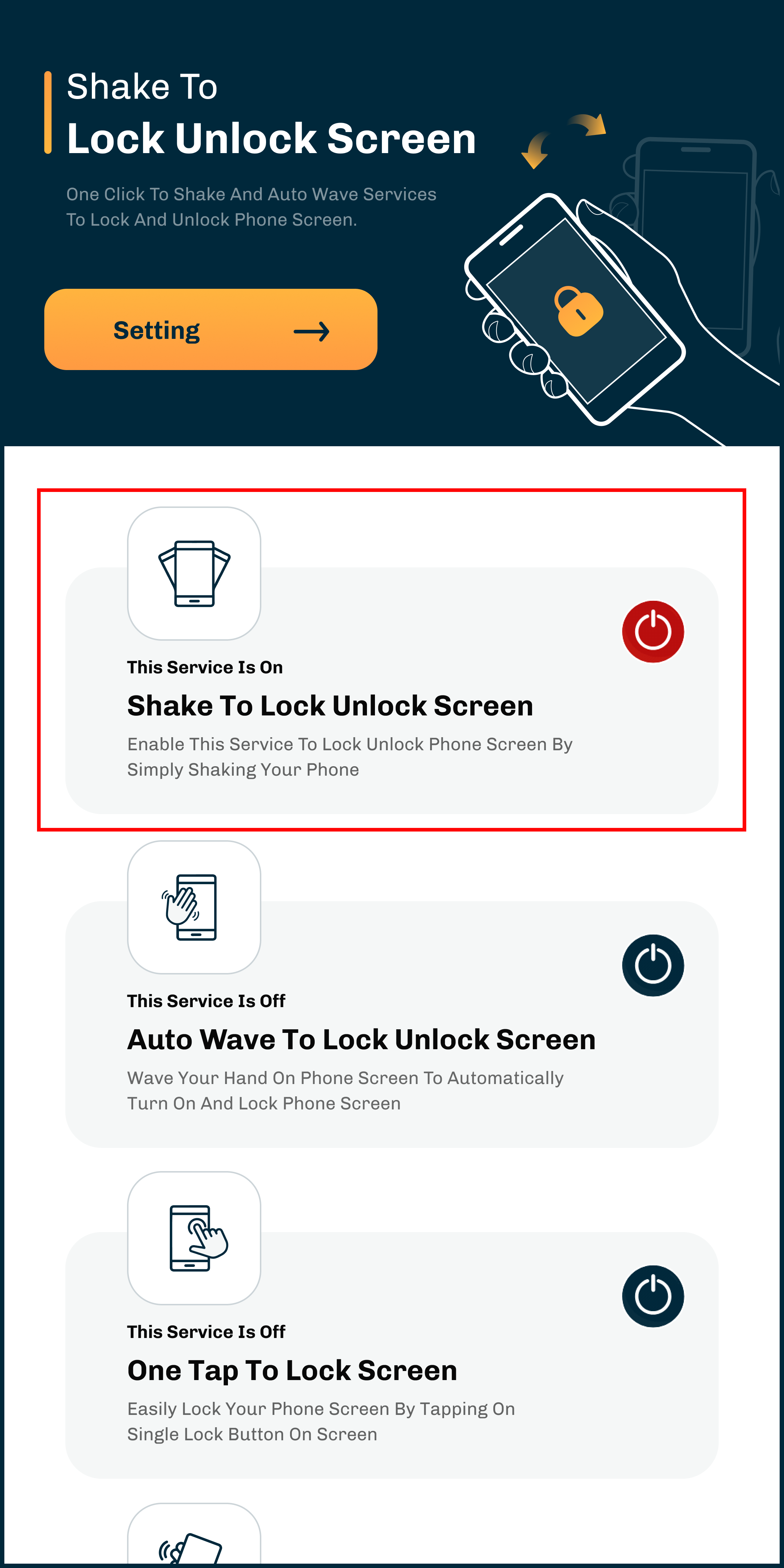
2. You need to click on the switch button in the service to use this app.
3. When you click on the switch button, a popup will appear.

3. Click on the accept button. Verify that the device admin app is activated.

You can delete your app and all associated information in two ways:

1. Delete your app following the steps below :

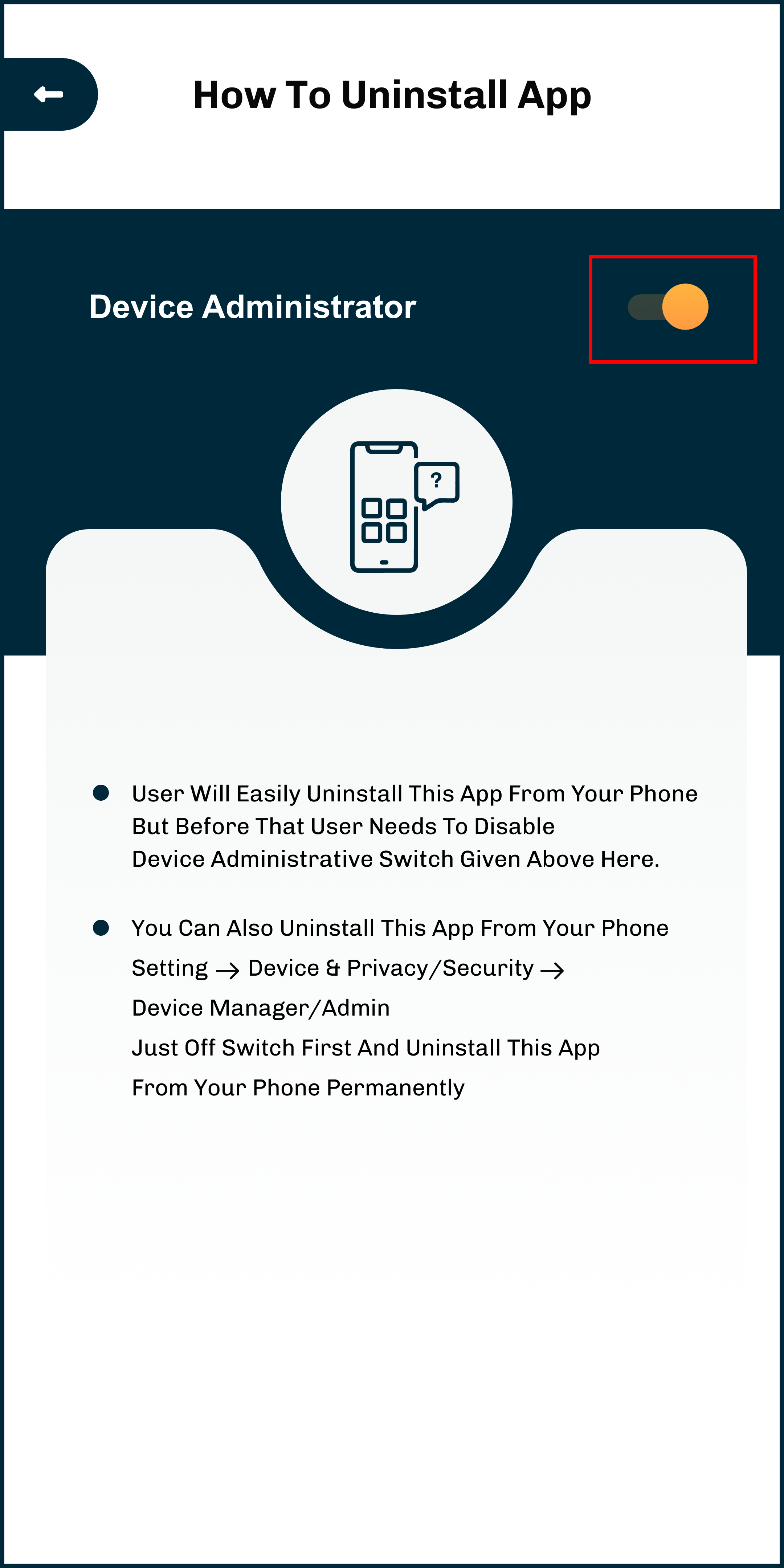
Easy App Uninstall Information

step 1 : settings > How to Uninstall

step 2 :If you want to uninstall the app go to settings and just switch off so that you can uninstall it easily.

note: To deactivate the activated device and then activate it again you will have to activate the lock screen for the phone.

2. Steps to uninstall in another way :

step 1: If you uninstall the app, the app notification will come. You will have to go through the verification process to activate it in the active device app.

step 2: Then, if shake to lock and unlock screen is activated, deactivate it.

Then, you can uninstall the app.

4. After activating this administrator permission will accept The shake to unlock screen to perform following action.

This permission also accepts other services like,

1. Shake to lock and unlock screen
2. Auto wave to lock unlock screen
3. One tap to lock screen
Follow these steps for this service also.