Auto Wave
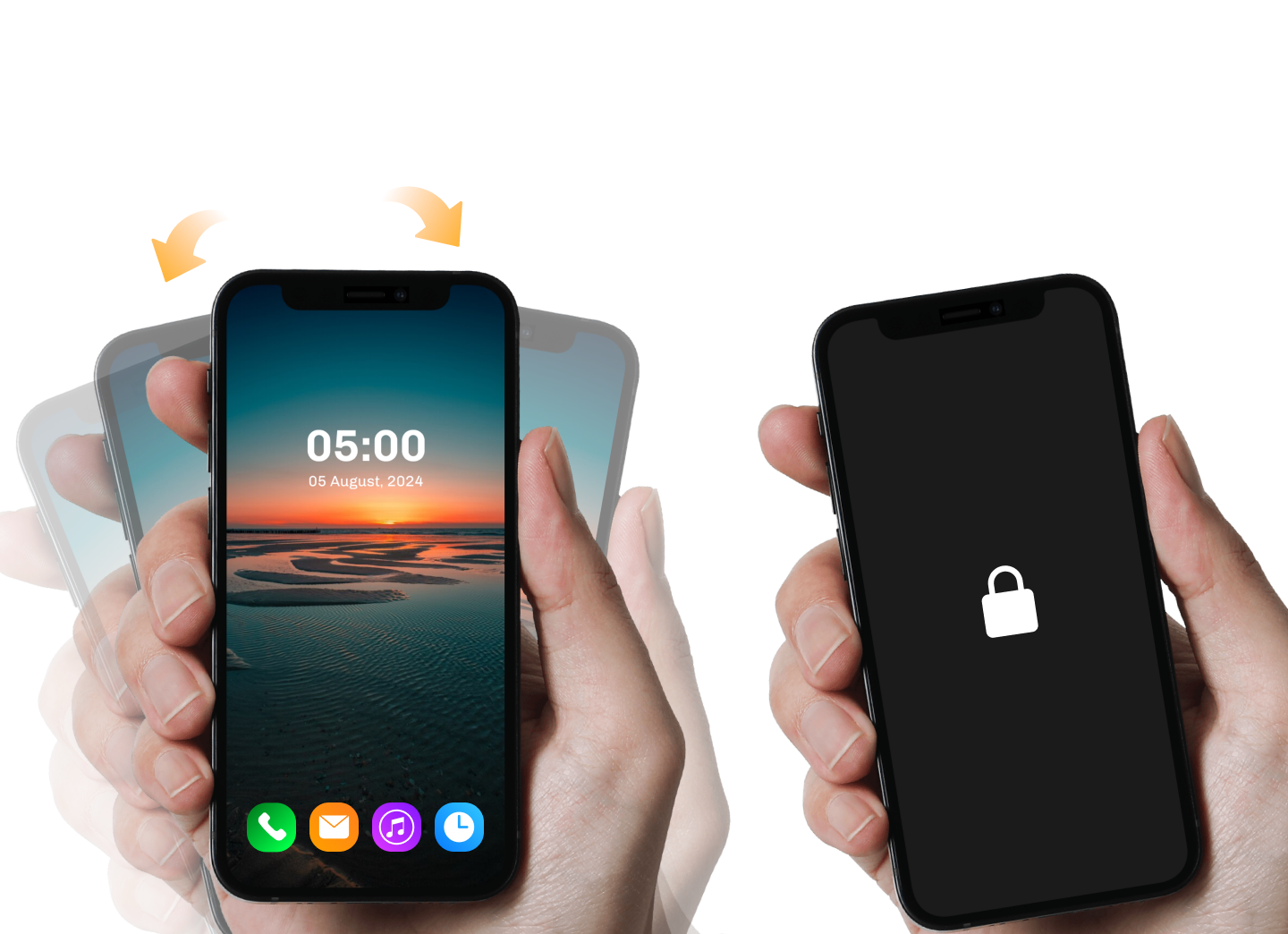
Shake to Lock
Auto Wave to Lock Unlock
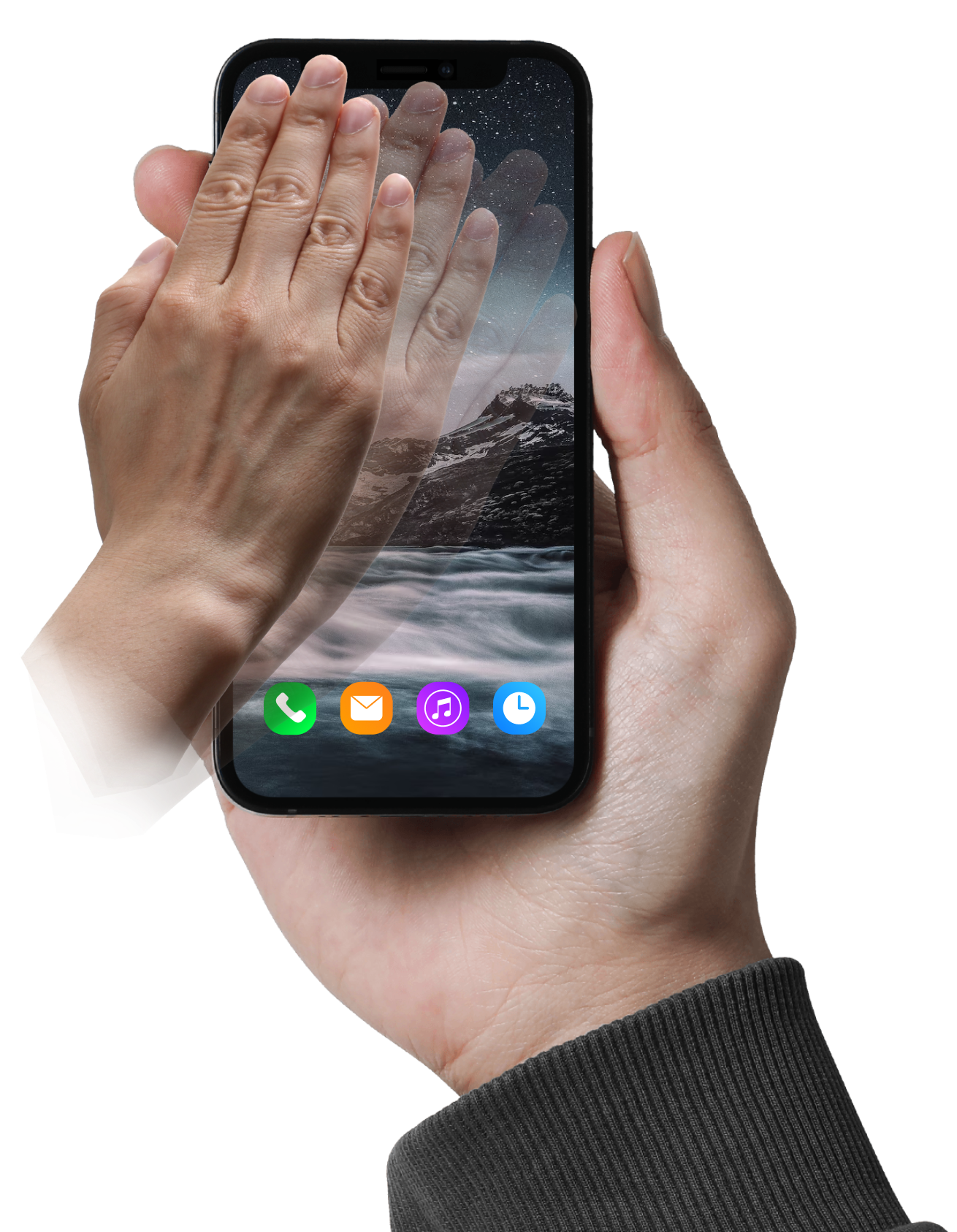
Wave your hand on phonescreen to automatically turn on and lockphone screen.
Wave Lock lets you lock and unlock your phone screen with a wave over the proximity sensor, reducing wear on the power button and extending its lifespan.
Setup & Steps
Step 1: Download & Install Wave Lock
- Go to Google Play Store
- Search for "Wave Lock" or similar apps (e.g., "Wave to Unlock and Lock", "WaveUp")
- Download and install the app
Step 2: Grant Necessary Permissions
- Open the app
- Device Admin Access (required to lock the screen)
- Display over other apps (optional, if features need floating widgets)
- Accessibility Permission (for unlocking)
Step 3: Customize Wave Detection
- Wave to Lock – wave once to lock
- Wave to Unlock – wave once or twice (depending on setting) to unlock
- Wave Speed Sensitivity – adjust how fast/slow you need to wave
- Sensor Delay – adjust response time after a wave
Step 4: Battery & Sensor Settings
- Enable Battery Optimization Ignore for smooth function
- Turn off in Pocket Mode (optional) to avoid accidental triggers
Step 5: Test the Feature
- Turn off the screen manually
- Wave your hand over the top of your phone (where the proximity sensor is located)
- Phone should automatically wake/unlock
- Repeat to lock if “Wave to Lock” is enabled
Key Benefits
Tips for Best Performance
- Use it with phone stands, so no physical contact is needed
- Don’t cover the sensor permanently – that may prevent detection
- Set a wave count to avoid accidental unlocks (e.g., double wave)
Key Benefits
- Reduces wear and tear on power button
- Useful for phones with broken buttons
- Offers a hands-free experience
- Energy-efficient compared to always-on display features
Asked Questions
Wave Lock is a smart utility that allows you to lock or unlock your smartphone screen by waving your hand over the proximity sensor. It's a hands-free solution that enhances convenience, reduces wear on your power button, and adds a futuristic touch to your daily phone use.
- It uses the proximity sensor on your phone, typically near the front camera.
- When a hand moves close to or over the sensor, it triggers an action.
- You can configure the app to either lock or wake the phone with specific gestures.
Yes, that’s the whole point! Just wave your hand in front of the proximity sensor and your phone will lock or wake, depending on your settings—completely touch-free.
Wave Lock is designed to be battery-friendly. It only activates the proximity sensor when needed. Still, for optimal performance, ensure you exclude the app from battery optimization settings.
- Device Admin Access: To allow the app to lock your phone.
- Accessibility Services: Needed for unlocking functionality.
- Display over other apps: Optional, for advanced features like floating widgets.
Simply turn off your screen manually. Then wave your hand over the phone’s top front area (where the proximity sensor is). If enabled, the screen should automatically wake. Try again to lock it if “Wave to Lock” is active.
How Download The App?
Just download the app from the store. Simple, nice and user-friendly application.

© Shake To Lock Unlock Screen All rights reserved.